Choosing the right image format can make the difference between a fast-loading website and one that drives visitors away. Each format — PNG, JPG, WebP, and SVG — has specific strengths. Understanding when to use each one and how to convert between them is an essential skill for designers, developers, and content creators.
Understanding Image Formats
Before converting, it helps to understand what each format does best. Image formats fall into two broad categories: raster (pixel-based) and vector (math-based). JPG, PNG, and WebP are raster formats. SVG is vector.
JPG (JPEG)
JPG uses lossy compression — it discards some image data to achieve smaller file sizes. This makes it ideal for photographs and complex images with many colors. Every time you re-save a JPG, it loses a tiny bit more quality, so avoid editing and re-saving JPGs repeatedly.
- Best for: Photos, complex images with gradients
- Supports transparency: No
- Typical file size: Small to medium
- Quality trade-off: Lossy — some detail lost on every save
PNG
PNG uses lossless compression — no quality is lost, no matter how many times you save. It supports transparency (alpha channel), making it essential for logos, icons, and graphics that need to overlay other content. The trade-off is larger file sizes compared to JPG.
- Best for: Logos, icons, screenshots, graphics with transparency
- Supports transparency: Yes (full alpha channel)
- Typical file size: Medium to large
- Quality trade-off: Lossless — perfect quality always
WebP
WebP is a modern format developed by Google that offers both lossy and lossless compression. It typically produces files 25-35% smaller than equivalent JPG or PNG files while maintaining comparable quality. WebP supports transparency and even animation, making it a versatile all-rounder.
- Best for: Web images, any scenario where file size matters
- Supports transparency: Yes
- Typical file size: Smallest of the raster formats
- Browser support: All modern browsers (Chrome, Firefox, Safari, Edge)
SVG
SVG is a vector format that describes images using mathematical equations rather than pixels. SVGs scale to any size without losing quality, making them perfect for logos, icons, and illustrations. They're also editable in code and can be styled with CSS.
When to Convert — and When Not To
Not every conversion makes sense. Converting a JPG photo to PNG won't magically restore lost detail — the quality was already reduced during the original JPG compression. Here are the conversions that actually help:
- PNG → WebP: Reduces file size significantly while keeping transparency. Great for web optimization.
- JPG → WebP: Smaller files for the same visual quality. Always worth doing for web use.
- SVG → PNG: Needed when you require a pixel-based version at a specific resolution (e.g., for social media uploads that don't accept SVG).
- PNG → JPG: If you don't need transparency and want smaller files. Useful for emailing or uploading photos.
- WebP → PNG/JPG: When you need compatibility with older software that doesn't support WebP.
How to Convert Images in Your Browser
You don't need desktop software to convert image formats. DesignForge360's Image Converter processes files entirely in your browser using the Canvas API — no uploads, no server processing, no privacy concerns.
- Open the tool: Navigate to the Image Converter page.
- Upload your image: Drag and drop or click to select your file.
- Choose the target format: Select PNG, JPG, or WebP from the output options.
- Adjust quality (if applicable): For lossy formats like JPG and WebP, slide the quality bar to balance size vs. fidelity.
- Download: Click the download button to save the converted file.
Optimizing for Web Performance
Image optimization is one of the highest-impact things you can do for page speed. Google's Core Web Vitals — particularly Largest Contentful Paint (LCP) — are directly affected by image size. Here's a practical optimization strategy:
- Use WebP as your default web format — it offers the best size-to-quality ratio.
- Serve different sizes for different viewports using the
<picture>element orsrcsetattribute. - Compress images before uploading — even WebP files benefit from quality optimization.
- Use SVG for icons and simple graphics — they're tiny and scale perfectly.
- Lazy-load images below the fold to prevent them from blocking initial page render.
Common Pitfalls to Avoid
- Converting lossy → lossless won't restore quality. Once JPG compression removes data, converting to PNG just gives you a bigger file with the same reduced quality.
- Don't use PNG for photographs. A photo saved as PNG can be 5-10x larger than the same photo as JPG, with no visible quality improvement.
- Check alpha channel support. If your image has transparency and you convert to JPG, the transparent areas become white (or black).
- Mind your color profiles. Some conversion tools strip color profiles (sRGB, Adobe RGB), which can cause subtle color shifts on calibrated displays.
Batch Conversion Tips
If you need to convert dozens or hundreds of images, consider these approaches:
- Browser-based tools like DesignForge360 handle one-at-a-time well for quick conversions.
- Command-line tools like ImageMagick or Sharp (Node.js) are best for large batches — you can write a script to convert an entire folder in seconds.
- Build pipelines: If you're a developer, integrate image conversion into your build process (Vite, Webpack plugins) so images are automatically optimized at deploy time.
Summary
JPG for photos, PNG for transparency, WebP for modern web delivery, SVG for scalable graphics. Convert with purpose — match the format to the use case, not the other way around. When in doubt, WebP is almost always the right choice for web content, and our free Image Converter makes it effortless.
Recommended for You
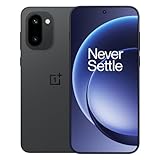
OnePlus 15R 5G
Snapdragon 8 Gen 5 · 7400mAh · 165Hz Display
- Snapdragon 8 Gen 5 chipset
- 165Hz AMOLED display
- 7400mAh all-day battery
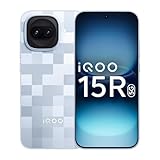
iQOO 15R 5G
5000nits Display · Top-Tier Camera · Fast Charging
- 5000nits peak brightness
- Flagship camera system
- 100W fast charging
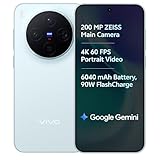
vivo X300 5G
Dimensity 9500 · ZEISS Camera · 90W Fast Charge
- ZEISS optics camera
- Dimensity 9500 chip
- 90W rapid charging
Disclosure: As an Amazon Associate, we may earn from qualifying purchases. Prices may vary.