Oversized PDF files cause problems — email attachment limits, slow uploads, storage costs, and frustrating download times. Compression can reduce file sizes by 50–90% in many cases. This guide covers every practical method for shrinking your PDFs, from free browser tools to professional desktop software.
Why PDFs Get Large
PDF file size is primarily driven by embedded images (especially high-resolution photos), embedded fonts, metadata, and the number of pages. A scanned document is typically much larger than a text-only PDF of the same length because every page is essentially a high-resolution image.
Other contributors to bloated PDFs include embedded multimedia (audio, video), form fields and JavaScript actions, hidden layers from design applications, and RGB colour profiles intended for screens rather than print. Understanding these contributors helps you target the right areas for compression.
Method 1: Online PDF Compressor (Easiest)
The fastest approach for one-off compression tasks is a browser-based tool.
- Go to our PDF Compressor tool
- Upload your PDF by dragging and dropping it into the tool
- Select your compression level (Low, Medium, or High)
- Click Compress and download the result
Our tool processes files entirely in your browser using pdf-lib. Files are never uploaded to a server, making this the most privacy-friendly option available.
Method 2: Adobe Acrobat (Best Quality Control)
Adobe Acrobat Pro gives you the most control over compression settings, particularly for image quality and resolution.
- Open your PDF in Acrobat Pro
- Go to File → Save as Other → Reduced Size PDF
- Or use Tools → Optimize PDF for advanced controls over image resolution, font embedding, and stream compression
The "Optimize PDF" audit feature in Acrobat shows you exactly what's consuming space — images, fonts, form data, metadata — so you can make targeted decisions instead of applying blanket compression that might hurt quality.
Method 3: Using Preview on Mac
macOS users have a built-in option that requires no extra software:
- Open the PDF in Preview (the default PDF viewer on Mac)
- Go to File → Export
- In the "Quartz Filter" dropdown, select "Reduce File Size"
- Click Save
This method applies aggressive image downsampling, so it works best for documents intended for on-screen reading. For print-quality documents, use Acrobat or our browser tool with a lower compression setting instead.
Method 4: Command-Line Tools (Best for Automation)
Developers and system administrators often need to compress PDFs in bulk or as part of automated workflows. Ghostscript is the most widely used command-line tool for PDF compression:
gs -sDEVICE=pdfwrite -dCompatibilityLevel=1.4 -dPDFSETTINGS=/ebook -dNOPAUSE -dBATCH -sOutputFile=output.pdf input.pdf- The
-dPDFSETTINGSflag controls compression level:/screen(72 DPI, smallest),/ebook(150 DPI, good balance),/printer(300 DPI), or/prepress(highest quality)
You can wrap this in a shell script or integrate it into a CI/CD pipeline to automatically compress generated reports or documentation before distribution.
Comparison: Which Method Should You Use?
| Method | Best For | Cost | Privacy |
|---|---|---|---|
| DesignForge360 Compressor | Quick one-off compression | Free | 100% local |
| Adobe Acrobat Pro | Professional / print work | $22.99/mo | Local |
| macOS Preview | Quick screen-quality compression | Free (Mac only) | Local |
| Ghostscript CLI | Batch / automated pipelines | Free (open source) | Local |
Tips for Maximum Size Reduction
- Optimize before creating: In Word or InDesign, use "Save as PDF" with optimized image settings rather than printing to PDF
- Downsample images: For screen-only PDFs, 150 DPI is sufficient. Print requires 300 DPI
- Remove hidden layers: Technical PDFs sometimes have hidden layers that add significant file size
- Subset fonts: Embed only the characters you actually use rather than full font files
- Remove metadata: Document properties, author info, and revision history can add bytes without value
- Flatten form fields: If the PDF has filled forms you no longer need to edit, flattening them converts interactive fields to static content and can significantly reduce file size
- Convert to PDF/A: This archival format strips unnecessary elements while preserving visual fidelity — useful for long-term storage
Understanding Compression Levels
Most PDF compressors offer tiered compression settings. Understanding the trade-offs helps you choose the right level for each use case:
- Low compression (high quality): Reduces file size by 10–30%. Images stay virtually identical. Best for professional documents with photos or diagrams that need to remain sharp
- Medium compression (balanced): Reduces file size by 40–60%. Slight image softening visible only at high zoom. Best for general purpose — email sharing, web uploads, cloud storage
- High compression (smallest size): Reduces file size by 70–90%. Noticeable image degradation. Best for text-heavy documents, internal drafts, or archival copies where visual quality is secondary
Common Mistakes to Avoid
- Compressing already-compressed PDFs: Running a PDF through compression multiple times rarely helps and can degrade quality. Compress once from the original source
- Using screenshot/print-to-PDF: Printing a web page or document to PDF creates an image-based file that's larger and uncompressible compared to a properly exported PDF
- Ignoring image resolution before embedding: A 4000×3000 photo pasted into a PDF that displays at 400×300 still carries all 12 megapixels. Resize images to their display dimensions before inserting them
- Forgetting to check quality after compression: Always open the compressed PDF and verify text is legible, images are acceptable, and no content was lost — especially charts, diagrams, and small text
Frequently Asked Questions
Does compressing a PDF reduce quality?
Low and medium compression levels preserve quality for most use cases. Text, vector graphics, and layout are unaffected by compression — only raster images (photos, scans) are degraded. If your PDF is mostly text, compression will reduce size with virtually zero visible impact.
What's the email attachment size limit?
Gmail and most providers cap attachments at 25 MB. Outlook caps at 20 MB for personal accounts. If your PDF is near these limits, medium compression will typically bring it well within range.
Can I compress a password-protected PDF?
You need the document's password to open it for compression. Owner-restricted PDFs (copy/print disabled) can often still be compressed by tools that respect the restriction flags. If the PDF requires a password to open, you must supply it first.
Recommended for You
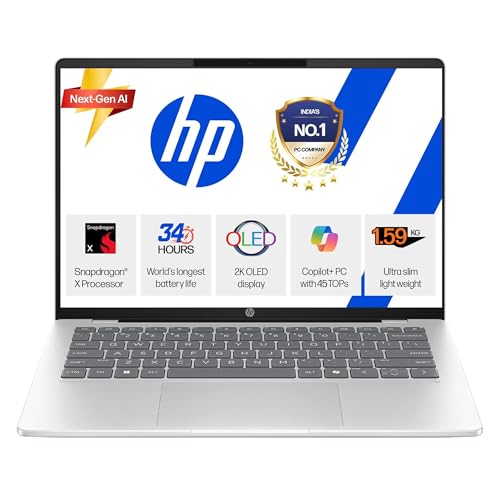 Laptop
HP Next-Gen AI Laptop
Latest Gen Processor · Backlit KB · Lightweight
- AI-powered performance
- Backlit keyboard
- Ultra-lightweight build
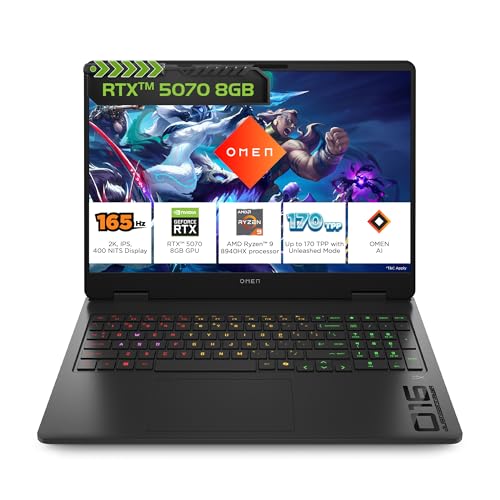 Gaming
HP Gaming Laptop
RTX Graphics · High Refresh Rate · 16GB RAM
- RTX graphics card
- High refresh display
- 16GB DDR5 RAM
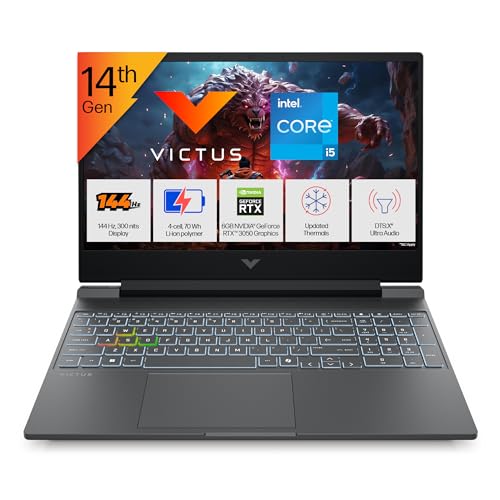 Gaming
Gaming Laptop Pro
RTX 4050 · AMD Ryzen 7 · RGB Keyboard
- RTX 4050 GPU
- AMD Ryzen 7 processor
- RGB mechanical keys
Disclosure: As an Amazon Associate, we may earn from qualifying purchases. Prices may vary.