Images typically account for 50-70% of a web page's total weight. Unoptimized images are the single biggest cause of slow page loads, poor Core Web Vitals scores, and high bounce rates. The good news: you can reduce image file sizes by 60-80% with virtually no visible quality loss, if you use the right techniques.
Why Image Size Matters
Page speed directly affects user experience, SEO rankings, and conversion rates. Google uses Core Web Vitals — particularly Largest Contentful Paint (LCP) — as a ranking factor. A hero image that takes 3 seconds to load will tank your LCP score and push you down in search results.
- 53% of mobile users abandon sites that take more than 3 seconds to load.
- Every 100ms of added load time reduces conversions by roughly 7%.
- Image optimization is the single highest-ROI performance improvement you can make.
Lossy vs. Lossless Compression
All image compression falls into two categories. Understanding the difference is essential for choosing the right approach:
Lossy Compression
Lossy compression permanently removes some image data that the human eye is unlikely to notice. By discarding high-frequency detail, color variations in smooth gradients, and subtle noise, it achieves dramatic file size reductions — often 70-90% — with minimal perceptible quality loss.
JPG and WebP (in lossy mode) use this approach. The "quality" slider (0-100) controls how aggressively data is discarded. For most web images, quality 75-85 produces excellent results.
Lossless Compression
Lossless compression reduces file size without losing any data — the decompressed image is pixel-identical to the original. It works by finding more efficient ways to represent the same information. PNG, WebP (in lossless mode), and GIF use lossless compression.
Lossless typically achieves 10-40% reduction — much less than lossy, but appropriate when every pixel matters (medical imaging, technical diagrams, pixel art).
Choosing the Right Format
Format choice is the most impactful decision in image optimization:
- Photos and complex images: WebP (lossy) for modern browsers, JPG as fallback. Quality 78-85.
- Graphics with transparency: WebP (lossless) or PNG. WebP is 25-35% smaller.
- Icons and logos: SVG whenever possible — infinitely scalable, tiny file size, styleable with CSS.
- Animations: WebP (animated) or MP4/WebM video for longer animations. Avoid GIF — it's huge and limited to 256 colors.
Compression Techniques That Work
1. Resize Before Compressing
This is the single most effective optimization. A 4000x3000 pixel photo displayed at 800x600 on screen is wasting 96% of its pixels. Always resize images to their display dimensions (or 2x for retina) before applying compression.
Use our free Image Resizer to resize down to the exact dimensions you need.
2. Choose the Right Quality Level
For lossy formats, the quality level has a nonlinear relationship with file size. Going from quality 100 to 85 might reduce file size by 60% with no visible difference. Going from 85 to 50 saves another 40% but introduces noticeable artifacts.
- 90-100: Near-lossless. Minimal size savings. Use only for archival.
- 75-85: Sweet spot for web. Excellent visual quality, significant size reduction.
- 50-75: Noticeable but acceptable for thumbnails and backgrounds.
- Below 50: Visible artifacts. Only for extreme optimization scenarios.
3. Strip Metadata
Digital cameras embed EXIF metadata in images — camera model, GPS coordinates, timestamps, color profiles. This metadata can add 10-50KB per image. For web use, strip it. This also removes potentially sensitive location data from photos.
4. Use Progressive/Interlaced Loading
Progressive JPGs and interlaced PNGs display a low-resolution version first, then sharpen as more data loads. This creates the perception of faster loading because users see content immediately rather than waiting for a top-to-bottom render.
How to Compress Images with DesignForge360
Our Image Compressor processes images entirely in your browser — no uploads, no data leaves your device.
- Open the Image Compressor tool.
- Drop your image file(s) onto the upload area.
- Adjust the quality slider to your desired compression level.
- Preview the compressed result and compare with the original.
- Download the optimized image.
Responsive Images: The Complete Strategy
Modern web development requires serving different image sizes to different devices. A 4K desktop monitor and a mobile phone on 3G should not receive the same image. Here's the recommended approach:
- Generate 3-4 sizes of each image (e.g., 400w, 800w, 1200w, 2000w).
- Use the HTML
<picture>element with<source>tags for WebP with JPG fallback. - Set the
srcsetandsizesattributes so the browser picks the optimal size. - Always set explicit
widthandheightattributes to prevent Cumulative Layout Shift (CLS). - Add
loading="lazy"to images below the fold.
Measuring Impact
After optimizing images, measure the results:
- Google PageSpeed Insights: Check your LCP score before and after optimization.
- WebPageTest.org: Detailed waterfall charts showing exactly how image loading affects page speed.
- Chrome DevTools → Network tab: Filter by "Img" to see individual image sizes and load times.
- Lighthouse: The "Opportunities" section will flag images that can be further optimized.
Common Mistakes
- Uploading full-resolution camera photos: A 12MB DSLR photo has no place on a website. Resize first.
- Using PNG for photographs: A photo saved as PNG is 5-10x larger than the same photo as JPG, with no visible quality benefit.
- Ignoring WebP: WebP support is now universal. There's no reason not to use it as your primary web format.
- Over-compressing: Aggressive compression on hero images or product photos damages perceived quality. Use higher quality settings for prominent images.
- Compressing SVGs as raster: Converting SVG to JPG/PNG for the web is almost always wrong. Serve the SVG directly.
Summary
Resize first, compress second. Use WebP for web, JPG as fallback, PNG only when you need transparency, SVG for vectors. Quality 78-85 is the sweet spot. Strip metadata, use responsive images, and lazy-load below the fold. These steps alone can reduce your page weight by 60-80% and dramatically improve load times.
Recommended for You
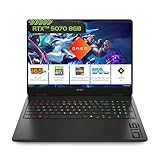
HP Gaming Laptop
RTX Graphics · High Refresh Rate · 16GB RAM
- RTX graphics card
- High refresh display
- 16GB DDR5 RAM
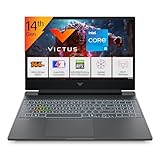
Gaming Laptop Pro
RTX 4050 · AMD Ryzen 7 · RGB Keyboard
- RTX 4050 GPU
- AMD Ryzen 7 processor
- RGB mechanical keys
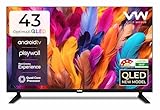
VW 43" Smart QLED TV
Full HD · Android TV · QLED Display
- QLED vivid colors
- Android TV built-in
- 43" Full HD panel
Disclosure: As an Amazon Associate, we may earn from qualifying purchases. Prices may vary.